> ## Documentation Index
> Fetch the complete documentation index at: https://auth0-feat-init-gt-translations.mintlify.site/llms.txt
> Use this file to discover all available pages before exploring further.
> Auth0 Dashboard を使用して、アプリケーションでエンタープライズ接続を有効にする方法について説明します。
# エンタープライズ接続を有効にする
Auth0 Dashboard を使用すると、アプリケーションのエンタープライズ接続を有効にできます。エンタープライズ接続を有効にするには、事前に設定が完了している必要があります。
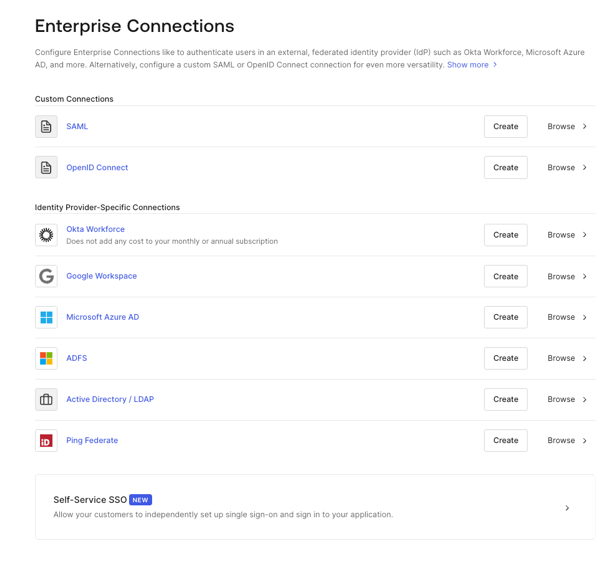
1. [Auth0 Dashboard > Authentication > Enterprise](https://manage.auth0.com/#/connections/enterprise) に移動し、表示する接続タイプを選択します。
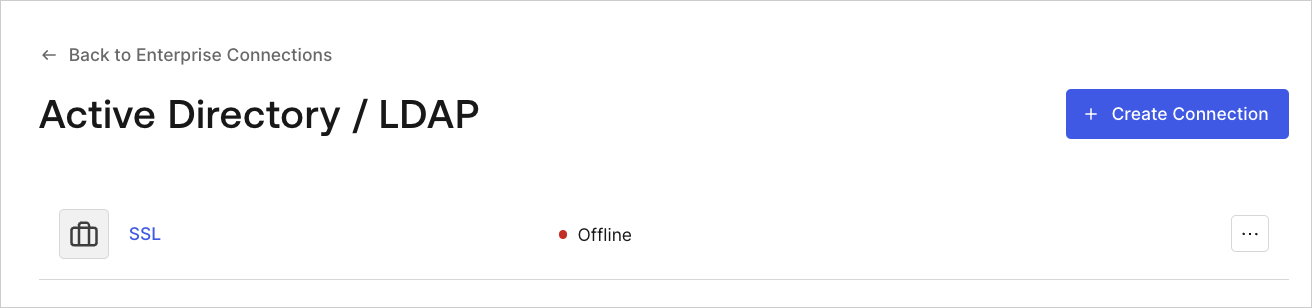
 2. 表示する接続の名前を選択します。
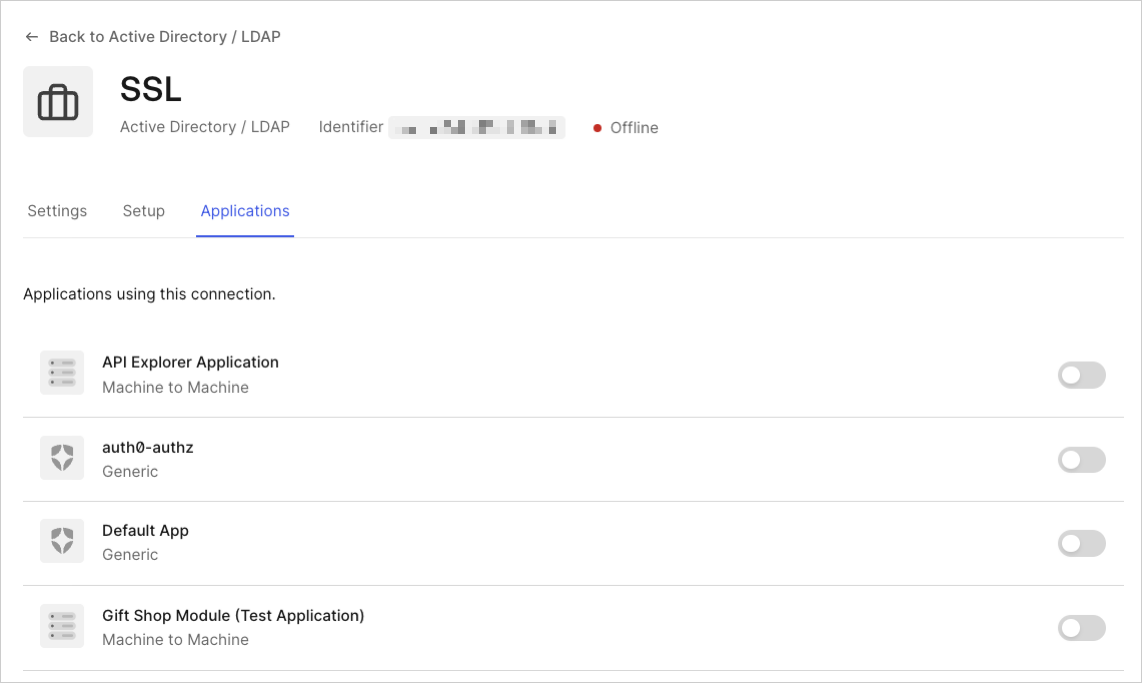
 3. **アプリケーション**ビューを選択し、該当するアプリケーションに対して接続を有効または無効にします。
 エンタープライズ IdP 接続を設定する際は、Auth0 の `/authorize,` `/whr,` または `/wsfed` エンドポイントに渡される `connection` パラメータにより、データベースまたは Active Directory 経由で接続されている場合を**除き**、アップストリームの IdP にリダイレクトされることに注意してください。
詳細
* [エンタープライズ接続 のテスト](/docs/ja-jp/authenticate/identity-providers/enterprise-identity-providers/test-enterprise-connections)